Installation
CCX is a comprehensive data management and storage solution that offers a range of features including flexible node configurations, scalable storage options, secure networking, and robust observability tools. It supports various deployment types to cater to different scalability and redundancy needs, alongside comprehensive management functions for users, databases, nodes, and firewalls. The CCX project provides a versatile platform for efficient data handling, security, and operational management, making it suitable for a wide array of applications and workloads.
Architecture Overview Diagram
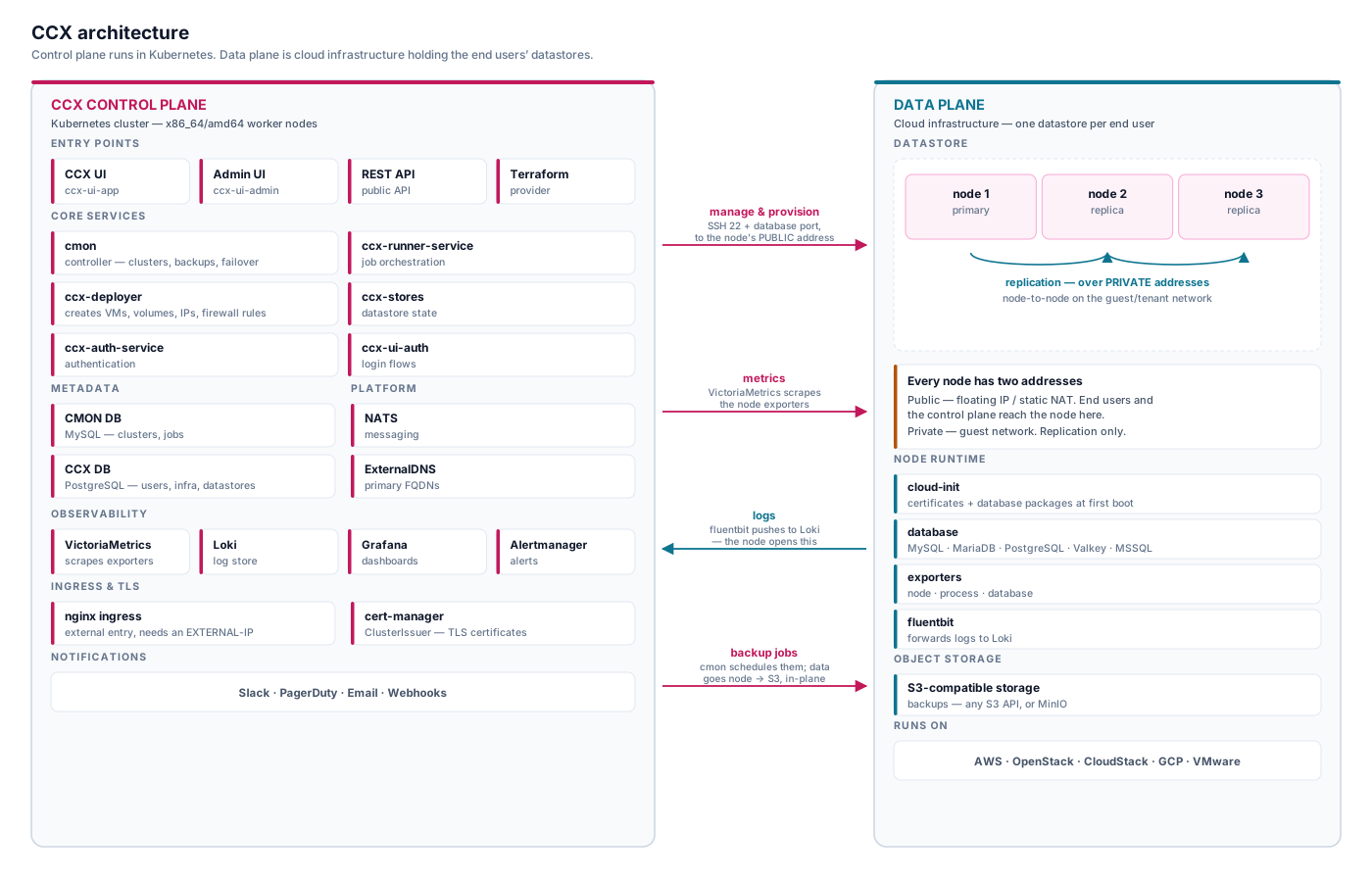
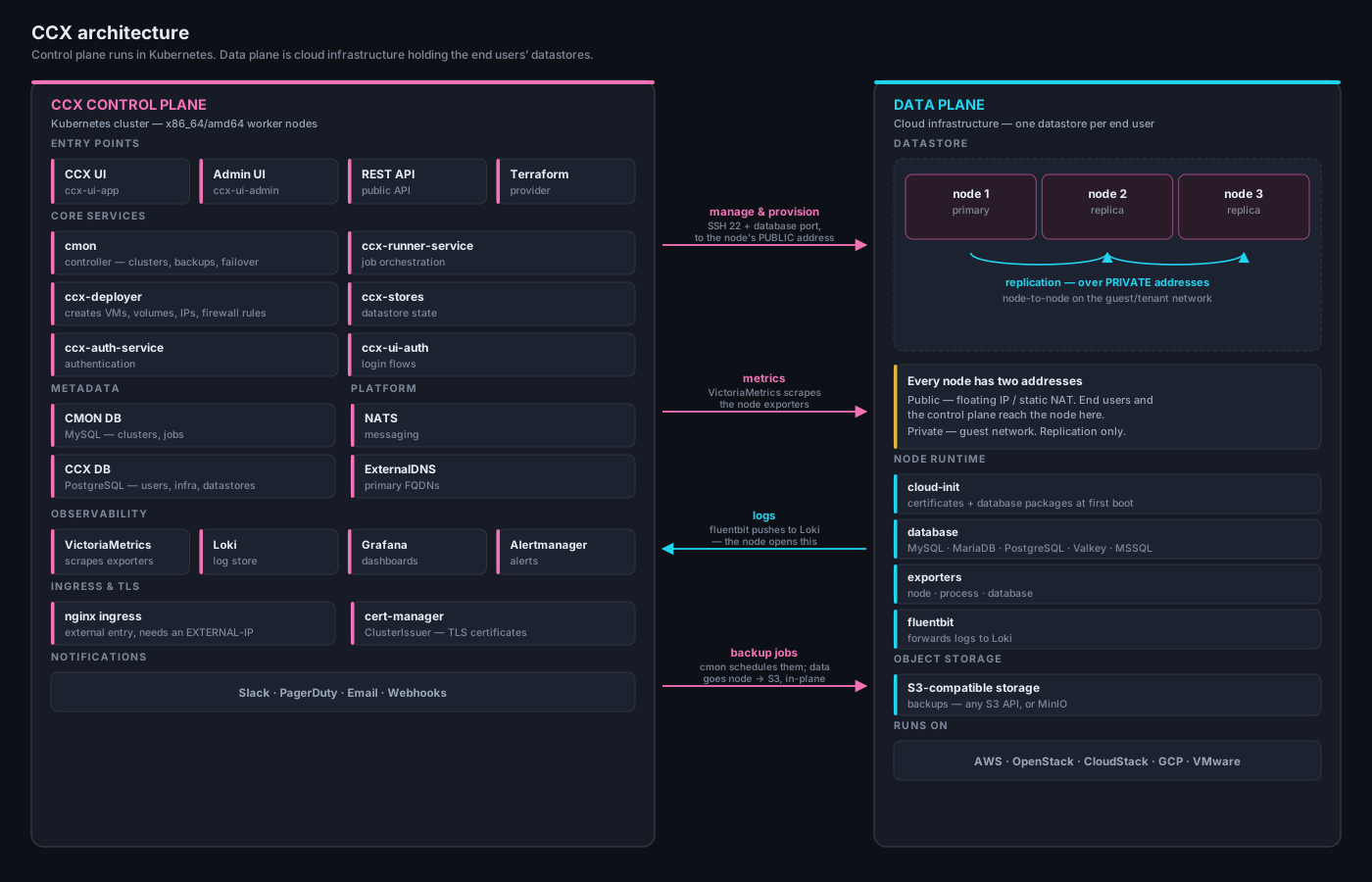
For a more details please read the architecture.
Quickstart
This quickstart installs CCX with AWS as the cloud provider, which is the chart default and the shortest path to a working system.
- OpenStack — follow Installing CCX supporting OpenStack instead. It covers the OpenStack credentials, networks and values file end to end.
- CloudStack — see Cloudstack, and note the guest template requirement, which blocks every deploy until it is met.
- Other providers — see CCX Cloud Provider Configuration.
The Kubernetes, chart and configuration sections further down this page apply to every provider; only the cloud credentials and the values file differ.
- For laptop/desktop installation instructions please visit Install CCX on a Laptop.
Add Severalnines Helm Chart repository
helm repo add s9s https://severalnines.github.io/helm-charts/
helm repo update
Create the cloud credential secret
This step must come before installing the ccx chart.
ccx.cloudSecrets defaults to [aws], and the chart refuses to render if a
secret named in that list does not already exist in the release namespace:
Error: execution error at (ccx/templates/cmon/stateful-set.yaml:20:19):
Missing secret defined in .Values.ccx.cloudSecrets - aws
Emptying the list is not a way around this — the chart then fails with
No secrets defined in .Values.ccx.cloudSecrets. At least one cloud credential
secret must exist before the first helm install ccx.
Create the secret in the same namespace you install the release into — if you
install into a ccx namespace, add -n ccx to the command below.
For AWS this is a single secret named aws, which is what ccx.cloudSecrets
already defaults to, so no override is needed later:
# Create k8s secret from AWS credentials stored in ~/.aws/credentials
kubectl create secret generic aws --from-literal=AWS_ACCESS_KEY_ID=$(awk 'tolower($0) ~ /aws_access_key_id/ {print $NF; exit}' ~/.aws/credentials) --from-literal=AWS_SECRET_ACCESS_KEY=$(awk 'tolower($0) ~ /aws_secret_access_key/ {print $NF; exit}' ~/.aws/credentials)
Other providers use different secrets — OpenStack needs two, for example — and
must name them in ccx.cloudSecrets at install time. See
Installing CCX supporting OpenStack or
CCX Cloud Provider Configuration.
Installation
# Install CCX dependencies
helm install ccxdeps s9s/ccxdeps --debug --wait
Then install CCX. The aws secret you just created matches the chart default,
so nothing needs overriding:
helm install ccx s9s/ccx --debug --wait
On another cloud, name your secrets explicitly instead — every secret listed in
ccx.cloudSecrets must already exist:
helm install ccx s9s/ccx --debug --wait --set ccx.cloudSecrets[0]=<secret-name>
If you do NOT have nginx ingress controller installed in your kubernetes cluster (very common in minikube or docker for desktop).You can install one that comes with ccxdeps chart like so:
# Install CCX dependencies
helm install ccxdeps s9s/ccxdeps --debug --wait --set ingressController.enabled=true
Then install CCX as above, naming your cloud secrets if they are not the aws
default.
Please note that this will install CCX on ccx.localhost.
Configuring your CCX installation
Allowing datastore creation on a fresh install
By default a user must have a verified email address and an active subscription before they can create a datastore. On a self-hosted install with no SMTP configured, neither can be satisfied, so the deploy wizard runs to the final step and then fails:
POST /api/prov/api/v2/cluster
402 Payment Required
{"err":"email verification required"}
Disable both checks — turning off only the first replaces this error with a subscription one:
ccx:
  env:
    REQUIRE_EMAIL_VERIFICATION: "false"
    REQUIRE_SUBSCRIPTION: "false"
Apply that with -f <your-values>.yaml, or pass it inline:
helm upgrade --install ccx s9s/ccx --debug --wait \
  --set ccx.env.REQUIRE_EMAIL_VERIFICATION=false \
  --set ccx.env.REQUIRE_SUBSCRIPTION=false
See Configuring the Helm install for the full list of these settings.
Providing cloud credentials
To be able to deploy datastores to a cloud provider (AWS by default) you need to provide cloud credentials. Cloud credentials should be created as kubernetes secrets in format specified in - https://github.com/severalnines/helm-charts/blob/main/charts/ccx/secrets-template.yaml (or secrets-template-openstack.yaml for OpenStack).
At least one of these secrets must exist before the first helm install ccx —
see Create the cloud credential secret for
the per-provider steps and the error you get without them.
To add credentials for a further provider, create the secret and then list every
secret name in ccx.cloudSecrets:
helm upgrade --install ccx s9s/ccx --debug --wait \
  --set ccx.cloudSecrets[0]=aws \
  --set ccx.cloudSecrets[1]=mycloud
Every secret named in ccx.cloudSecrets must exist, so create each one before
running the upgrade.
Setting up public access - custom domain name
Make sure that you have ingress controller in your cluster and you are able to setup externally facing load balancers and that either your domain name points to the ingress IP or you have external DNS configured in your cluster.
Simply run:
# Install CCX
helm install ccx s9s/ccx --debug --wait --set ccxFQDN=ccx.example.com
Further config
Please have a look at the helm values and minimal recommended values for CCX
- https://github.com/severalnines/helm-charts/blob/main/charts/ccx/minimal-values.yaml
- https://github.com/severalnines/helm-charts/blob/main/charts/ccx/values.yaml
Kubernetes cluster
K8s Control Plane Requirements
The control plane requires the following resources:
- 3 worker nodes
x86_64/amd64CPU architecture on the worker nodes- 4vCPU Per node
- 8GB of RAM Per Node
- 60 GB of Disk (for PVCs)
The CCX container images are built for linux/amd64 only. arm64 worker nodes
are not supported — on arm64 the control plane runs under emulation, which is
slow and unreliable. This applies to local installs too: if you are following
Install CCX on a laptop on an Apple Silicon Mac, use an
amd64 VM or cluster rather than the host architecture.
Kubernetes Cluster version
CCX requires Kubernetes Cluster Version to be >=1.22.
Namespace
A namespace must be configured for the CCX K8s services to operate.
example: ccx
Helm Charts
The Helm charts are located in https://artifacthub.io/packages/helm/severalnines/ccx. The source respository is located in https://github.com/severalnines/helm-charts. The three charts used below are:
- ccx
- ccxdeps
- ccx-monitoring (the observability stack; source repo: severalnines/observability) — see the Observability guide
Chart versions
The helm install commands throughout these docs are unpinned, so they resolve
to whatever is newest in the s9s repo at the moment you run them. Two installs
a month apart can therefore give you different versions.
To see what is actually available to you:
helm repo update
helm search repo s9s/ccx --versions
helm search repo s9s/ccxdeps --versions
To install a specific version rather than the newest, pass --version:
helm install ccx s9s/ccx --version <version> --debug --wait
Release candidates are not published to the public s9s repo, so the newest
version listed there normally lags the current internal release line. If you
were expecting a version that does not appear, that is usually why.
Last verified against ccx 1.57.0 and ccxdeps 0.6.22 — August 2026.
Later versions are expected to work; the date is here so you can judge how stale this page is, not to discourage you from installing something newer.
Prerequisite tool sets for CCX Installation
The following prerequisites are needed:
- nginx ingress controller
- NATS
- external-dns (Please see - DynamicDNS and please check the supported DNS provider for external-dns here). If you do not find your DNS on this list, we recommend that you create a zone in e.g AWS Route 53, CloudFlare or Google Cloud DNS.
- MySQL Database, aka CMON DB, is used by the CMON container to store metadata about managed/monitored data stores. See MySQL Operator installation guide.
- PostgresSQL Database, aka CCX DB, is used to store CCX (Control Plane) metadata. See Postgres Operator installation guide.
- Prometheus compatible monitoring server. If you don't have one, please visit the Observability installation guide.
This prerequisite can be installed using ccxdeps. Dependencies required for CCX are created as child charts inside ccxdeps. By default only the ingress-nginx controller and the external-dns is not enabled in ccxdeps.
You can enable by setting it to true by using below command.
  helm repo add s9s https://severalnines.github.io/helm-charts/
  helm repo update
  helm install ccxdeps s9s/ccxdeps --debug --set ingressController.enabled=true --set external-dns.enabled=true
Cloud Requirements
Flavors/images for datastores
CCX requires flavors built with Ubuntu 22.04 or 24.04 for the datastores. Ubuntu 24.04 is recommended for new deployments. For a test/evaluation the following flavors are recommended:
- 2vCPU, 4GB RAM, 80GB Disk
- 4vCPU, 8GB RAM, 100GB Disk
Also, the easiest if there is a default login account called 'ubuntu' on the image.
CloudStack only. A stock Ubuntu 24.04 cloud image — including the 24.04
recommended above — cannot deploy a datastore on CloudStack. cloud-init finishes
degraded, cloud-init status exits 2, and CCX refuses the node at host init on
every attempt. The guest template needs a patched cloud-init first; once patched,
24.04 works normally. Before deploying, verify the registered template with:
cloud-init status --long      # must show "status: done", never "degraded"
cloud-init status; echo $?    # must be 0
See Guest template requirements for the patch and the template build procedure. AWS and OpenStack are unaffected.
Floating IPs / Public IPs
Create a pool of floating IPs (public IPs). Each VM requires a floating IP/public IP.
Disk Space
Disk space can either be ephemeral or block storage. We recommend block storage as block storage devices can be scaled.
Cloud Provider Configuration
To know more about the CCX Cloud Provider Configuration setup, please read CCX Cloud Provider Configuration.
Production Environment Configs
Backups needs to be configured for:
Severalnines is not responsible for backups that is lost or incorrect configuration.
Important Notice: Taking Persistent Volume Snapshots in Production Environment To ensure data integrity and availability in your production environment, it is crucial to take regular snapshots of Persistent Volume Claims (PVCs) for CMON, DB's. Configure snapshot schedule at regular intervals, based on the criticality and update frequency of your data in your cloud environment